
How to add a Progressive Web App (PWA) to your desktop

Table of contents
Back to top
Background (Back to top)
The new CJSM Service provides an alternative client to access the service called a ‘Progressive Web App’ or ‘PWA’.
A progressive Web App is a technology that allows a user to access a given website as if it is an application that sits on your local computer. Instead of accessing the site having to open a browser and enter a URL, the user can select the ‘App’ from their task bar much like would for apps such as Outlook or Microsoft Word.
Please note that PWA can only be used for accessing your webmail mailbox. If you have permissions for webmail administration or housekeeping activities then it is strongly recommended that the web browser interface is used to carry out those actions.
PWA can be ‘installed’ on most common browsers. The steps below provide the necessary guidance for common browsers (Chrome, Safari, Edge). The following sections provide guidance on adding the PWA into browsers using Windows and Mac OSX.
Windows Operating System (Back to top)
Microsoft Edge Browser (Back to top)
- Login to CJSM at www.cjsm.net with your webmail user name and password
- In the search bar where the URL resides, you will see a symbol like this:

- Press the symbol and Install the App
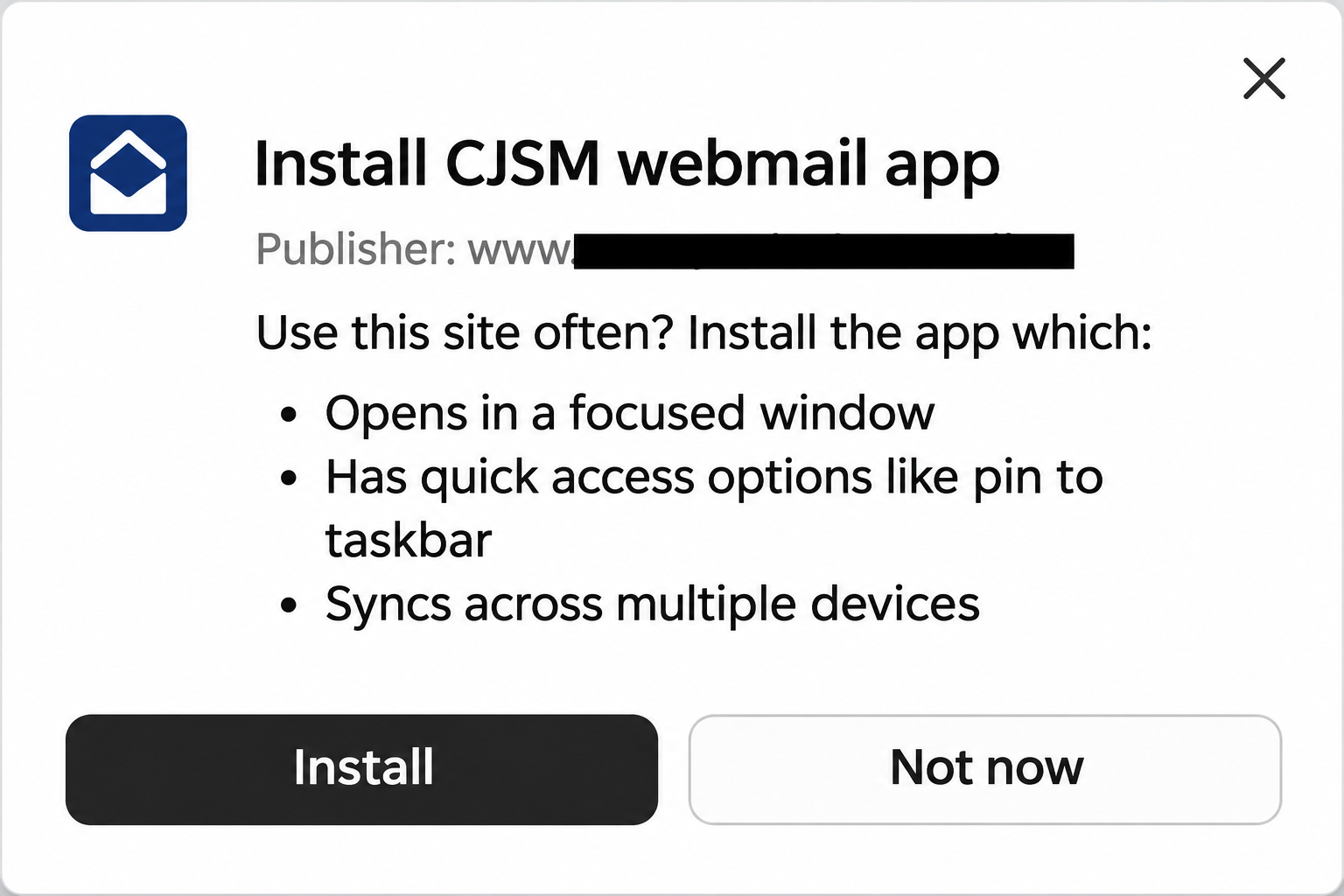
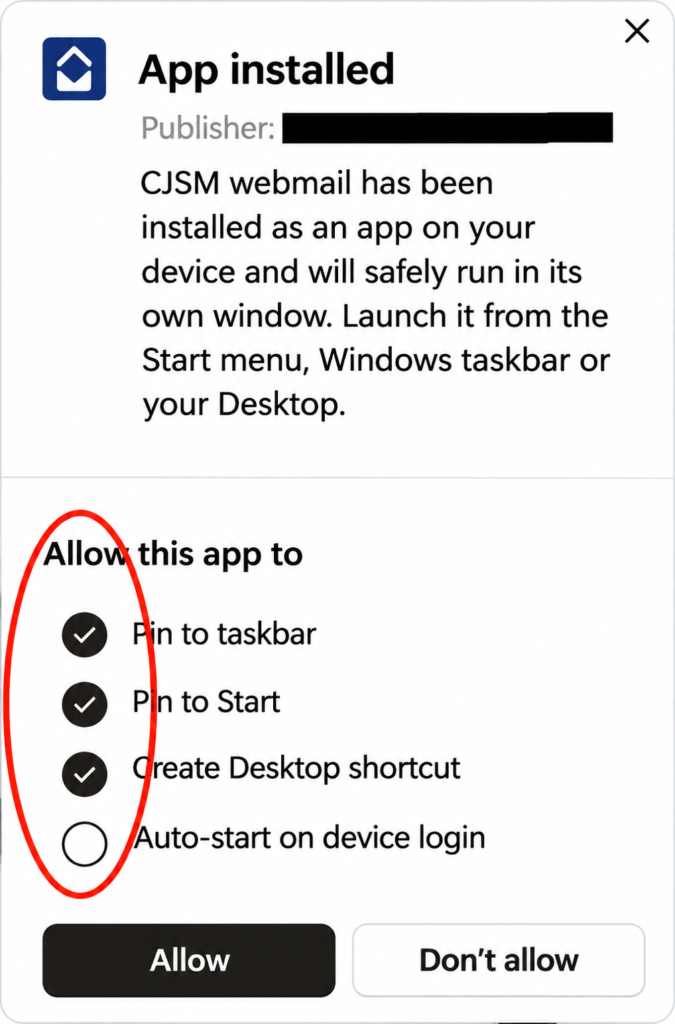
- You will then be prompted to allow the app to Pin to the taskbar, Start and create a desktop shortcut. Select by clicking and pressing Allow (or your own preference)
- The App will then appear on your task bar and you can open it and use it as if it were a standard desktop application
Chrome (Back to top)
- Login to CJSM at www.cjsm.net with your webmail user name and password
- In the top navigation bar look for the PWA symbol as shown below

- Press the symbol and Install the App
- You will be prompted to Install the app, select Next
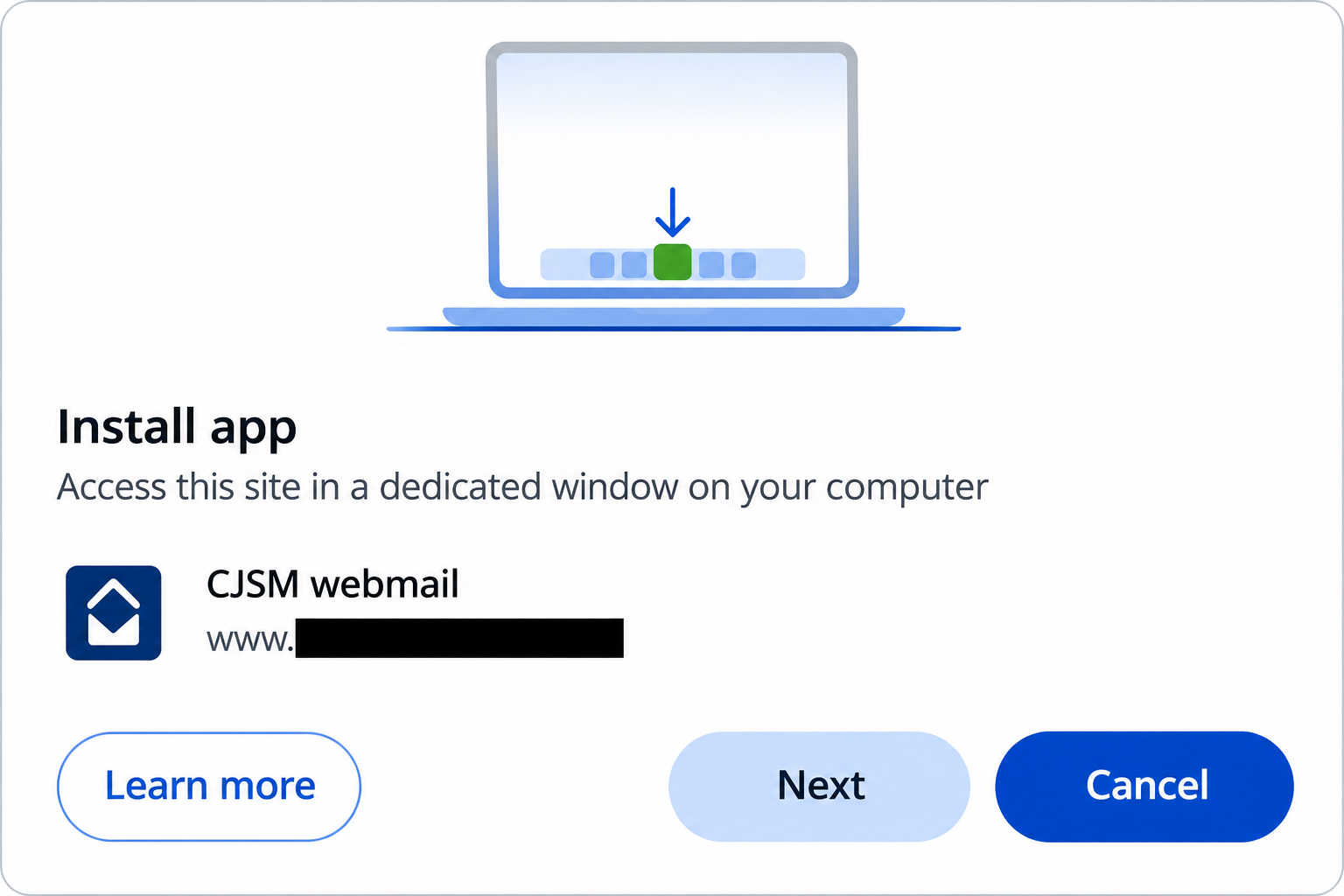
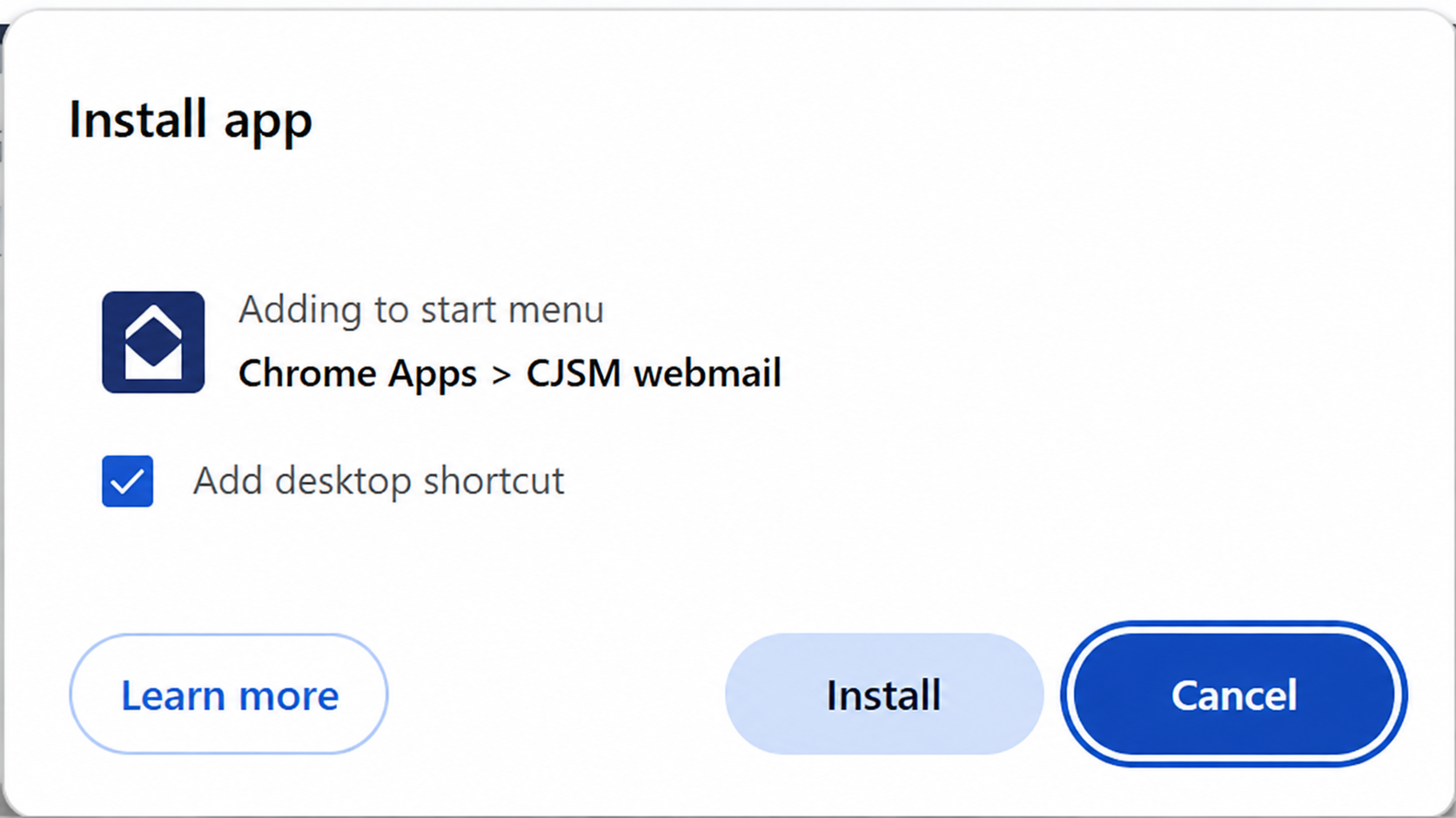
- You will be prompted to add a shortcut, make your selection, select Install
- Once successfully installed a final message will appear, select Close
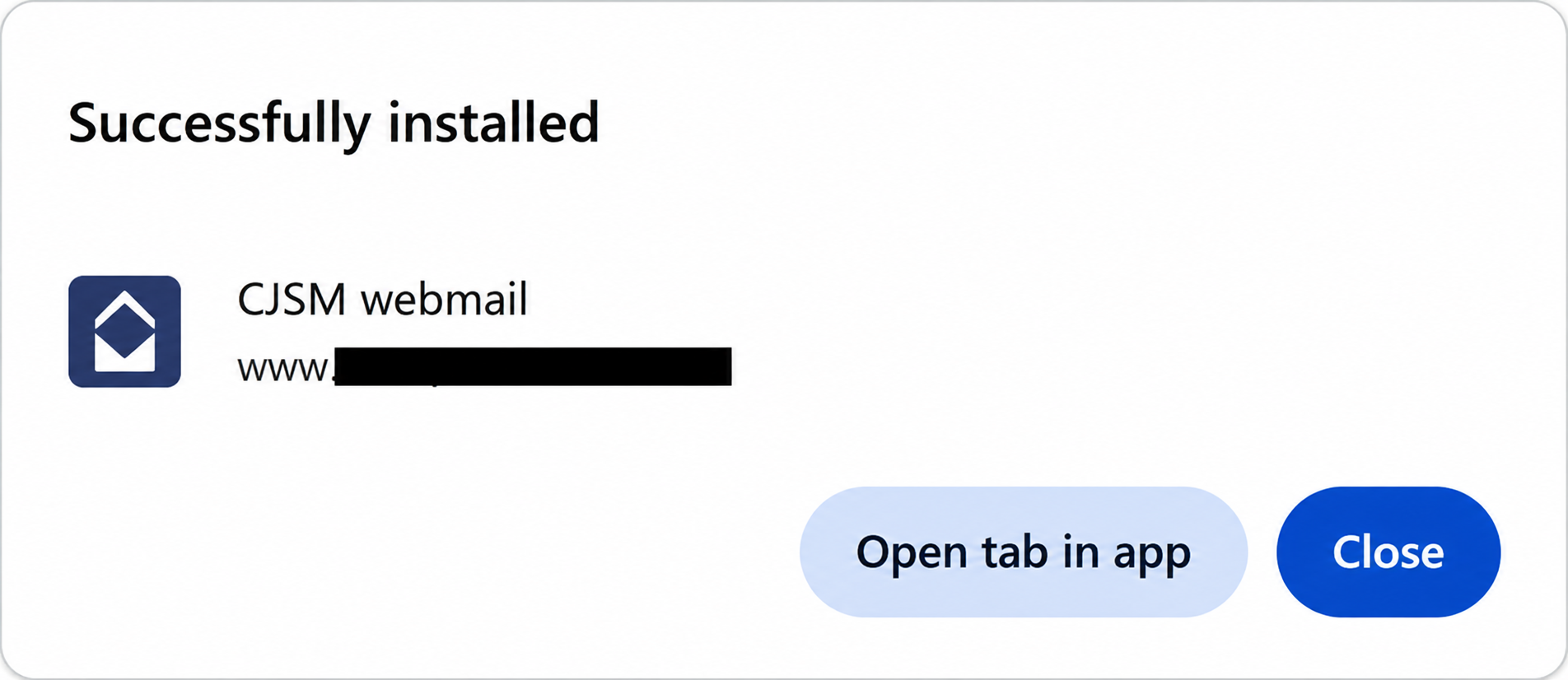
- If the option to “Add desktop shortcut” was selected above, a shortcut to the App will appear on your desktop, you can open it and use it as if it were a standard desktop application.
- You can also add a shortcut to your task bar.
Apple Mac OSX (Back to top)
Safari Browser (Back to top)
- Login to CJSM at http://www.cjsm.net with your webmail user name and password
- On the top navigation bar look for the Sharing symbol as see below
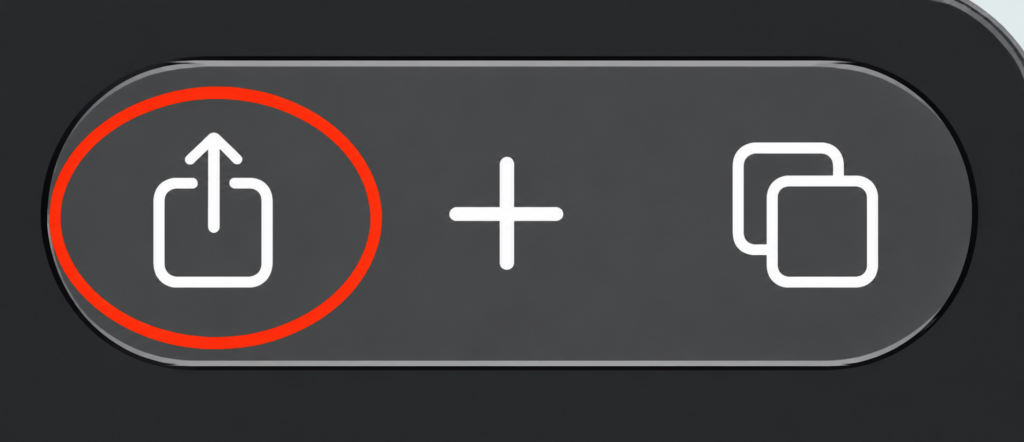
- Select Add to Dock
- An Application will then be added to your task bar
How to remove PWA
- To remove PWA, open Finder on your Mac and locate Users > [yourname] > Applications
- Delete the application from that finder
Chrome Browser (Back to top)
- Login to CJSM at www.cjsm.net with your webmail user name and password
- In the top navigation bar look for the PWA symbol as shown below
- When prompted select Install as shown below
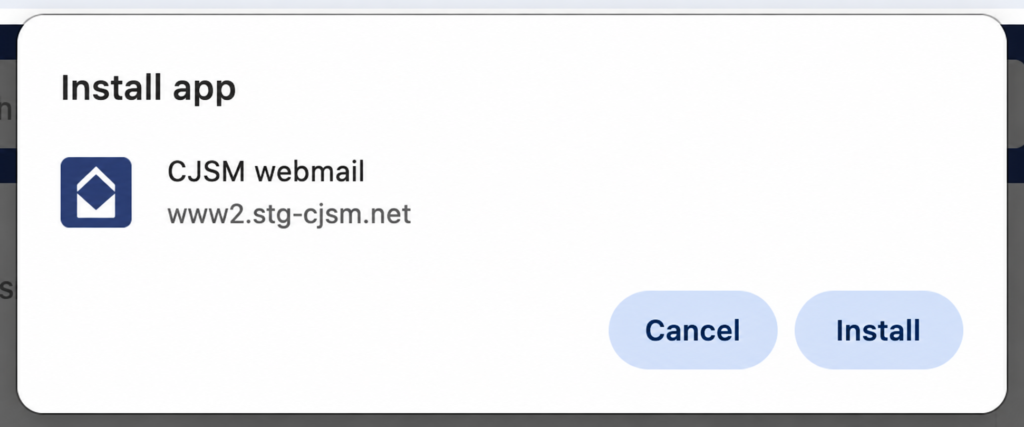
- An Application will then be added to your task bar
How to remove PWA
- To remove PWA, open Finder on your Mac and locate Users > [yourname] > Applications > Chrome Apps
- Delete the application from that finder
Microsoft Edge Browser (Back to top)
- Login to CJSM at http://www.cjsm.net with your webmail user name and password
- In the top navigation bar look for the PWA symbol as shown below
- When prompted select Install as shown below
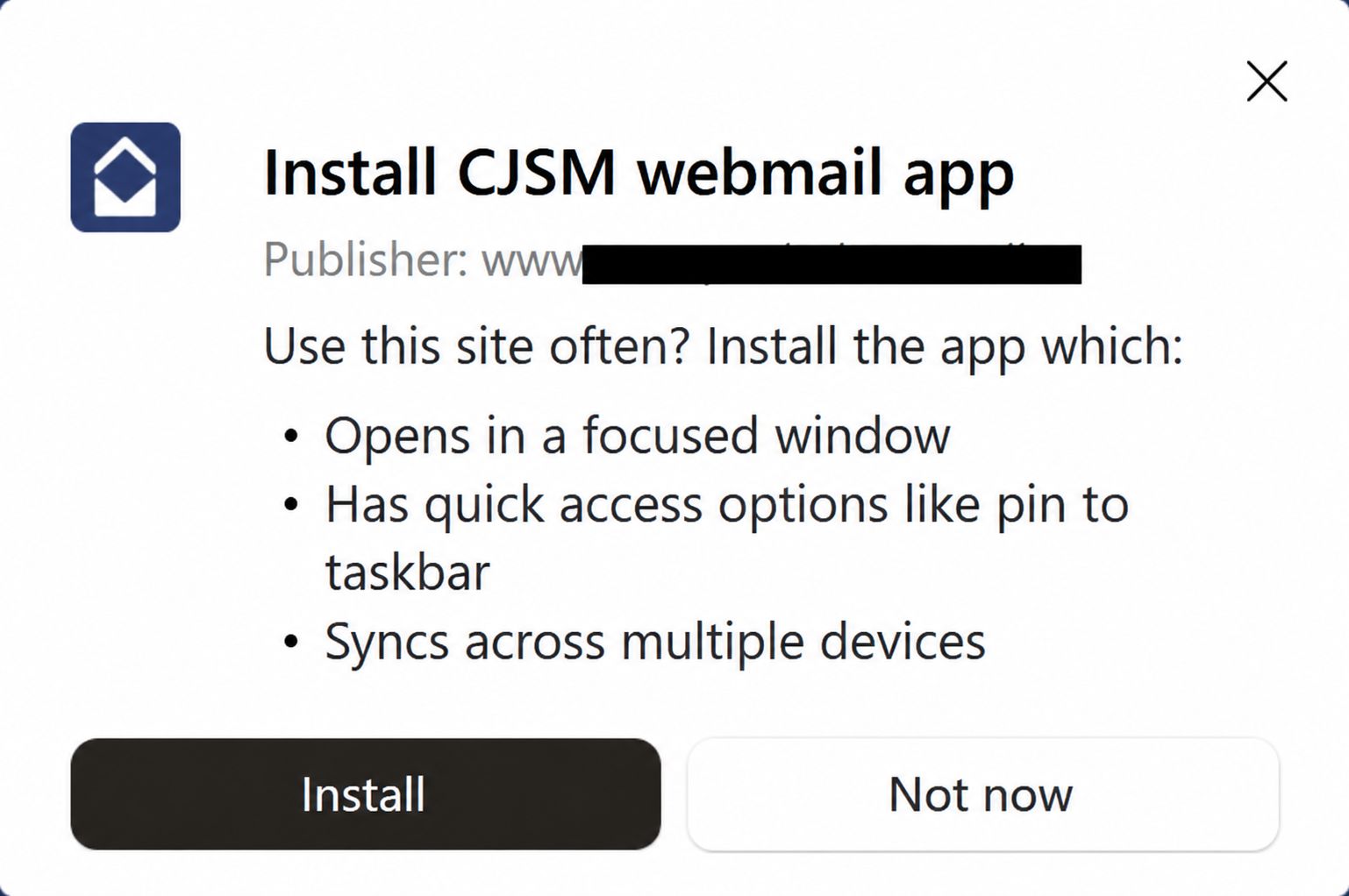
- An Application will then be added to your task bar
How to remove PWA
- To remove PWA, open Finder on your Mac and locate Users > [yourname] > Applications > Edge Apps
- Delete the application from that finder
Support of other operating systems and internet browsers (Back to top)
Other operating systems and browsers not mentioned in this guide can still be used. Users of Chromebooks should follow the instructions for Chrome as a guide. However, please note, where a PWA is not directly available and supported for your choice of internet browser then we would not recommend using that internet browser for the purposes of accessing CJSM webmail.